Back to XLongIdea X Screenshot
Get the app ↗

Capture · Mark up · Combine

X Screenshot

A compact Windows screenshot tool that keeps capture, annotation, saving, image search, and collage close at hand.

Region & window captureChinese & English UILocal image processing
Compact controls, one shortcut away
X Screenshot main interface in English
Capture and keep moving
Fast captureFull screen, region, window, taskbar
Built-in annotationShapes, arrow, line, pen, mosaic, text
No automatic uploadCapture and edit on your device
01 / Workflow

A quick route from screen to useful image.

The running 1.0.3.0 interface confirms shortcut control, history, image search, save settings, recent-image actions, and bilingual UI.

Capture precisely.

Freeze the screen, recognize candidate windows and visual regions, or draw a custom selection. Save the result or copy it directly to the clipboard.

  • Full-screen frozen overlay
  • Window, taskbar, and visual-region candidates
  • Save and copy with desktop notifications
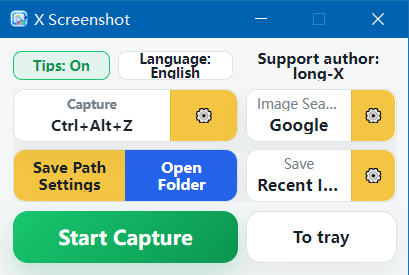
X Screenshot home controls

Search with the image you just captured.

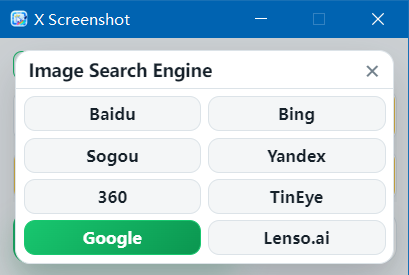
Copy the most recent screenshot and open a selected image-search service. The current interface includes Baidu, Bing, Sogou, Yandex, 360, TinEye, Google, and Lenso.ai choices.

  • Choose a preferred image-search service
  • Different defaults can be used for Chinese and English
  • Search starts only when you ask for it
Image search engine options in X Screenshot

Save files your way.

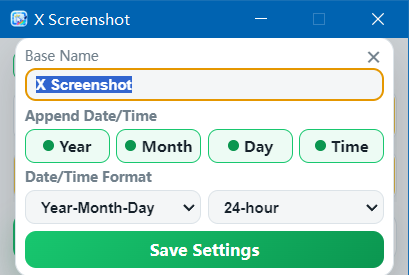
Choose the save directory, define a base filename, decide which date and time components to append, and select date and time formats.

Filename and date settings in X Screenshot
02 / Features

More than a capture button.

Verified against the current source handoff and installed 1.0.3.0 application.

01

Annotation

Rectangle, ellipse, arrow, line, pen, mosaic, and text tools help make the point directly on the capture.

02

Collage

Collect multiple screenshots and combine them into a horizontal or vertical image.

03

Custom shortcuts

Configure shortcuts for capture, image search, and saving the recent image.

04

Recent history

See recent capture actions and keep operation notifications available when useful.

05

Tray mode

Keep X Screenshot in the background so the capture shortcut stays within reach.

06

Bilingual UI

Switch between Chinese and English directly from the compact home window.

Start with the essentials. Unlock higher limits when needed.

The Store version includes basic capture and copy. Saving, image search, and collage generation have free daily usage, while X Screenshot Pro removes those limits and allows up to nine images in a collage.

Payment and license restoration are handled by Microsoft Store; the app does not process payment data.

03 / FAQ

Good to know.

Answers based on the current Windows release.

Does X Screenshot upload my images?

Capture, annotation, saving, and collage are performed locally. Images are not uploaded automatically. Image search opens a third-party search service only when you choose that action.

Can I annotate a screenshot before saving it?

Yes. The annotation tools include shapes, arrows, lines, pen, mosaic, and text.

Can multiple screenshots be combined?

Yes. Screenshots can be added to a collage queue and combined horizontally or vertically.

Is an account required?

No online account is required for the application’s core capture workflow.

Capture the next detail.

Open the verified X Screenshot listing in Microsoft Store to see current availability and purchase information for your region.

Open Microsoft Store9MT5LDQ4K85W